
How to Use AI Copilot Actions for Shopify
How to Turn It On
Go to Functions → AI Copilot Actions, then select Shopify from the list. Turn on whichever of the 5 actions you want your chatbot to use.
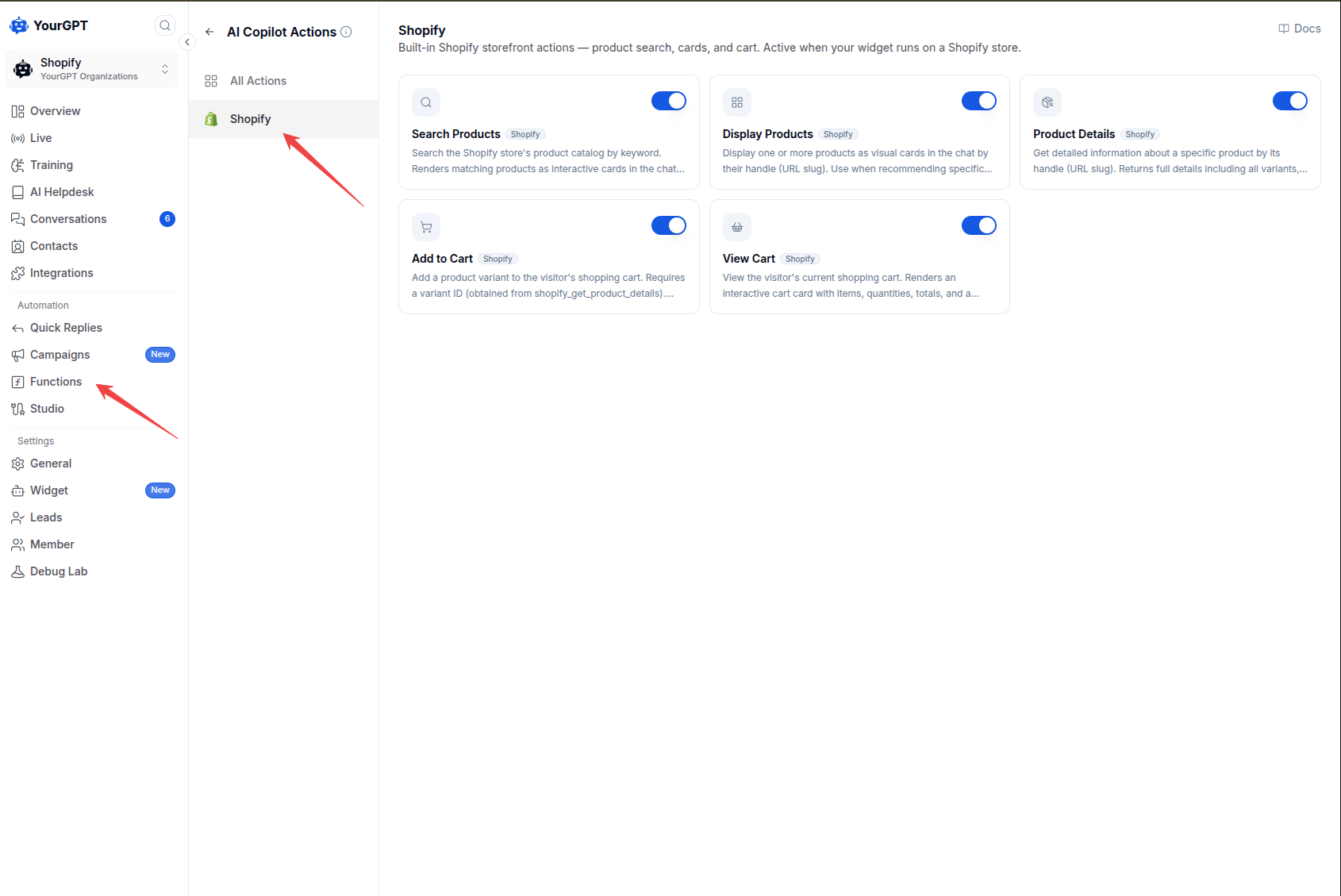
These actions only work on your Shopify store.
The 5 Actions
These work together as a sequence, though a shopper doesn't need to know that — it just feels like one smooth conversation.
1. Search Products
When a shopper describes what they want ("do you have any cheese?"), the AI quietly searches your catalog by keyword. Nothing appears in the chat yet — it's just the AI figuring out what to show next.
2. Display Products
The AI shows matching products as cards right in the chat — image, title, brand, and price (with the original price shown struck-through if it's on sale).
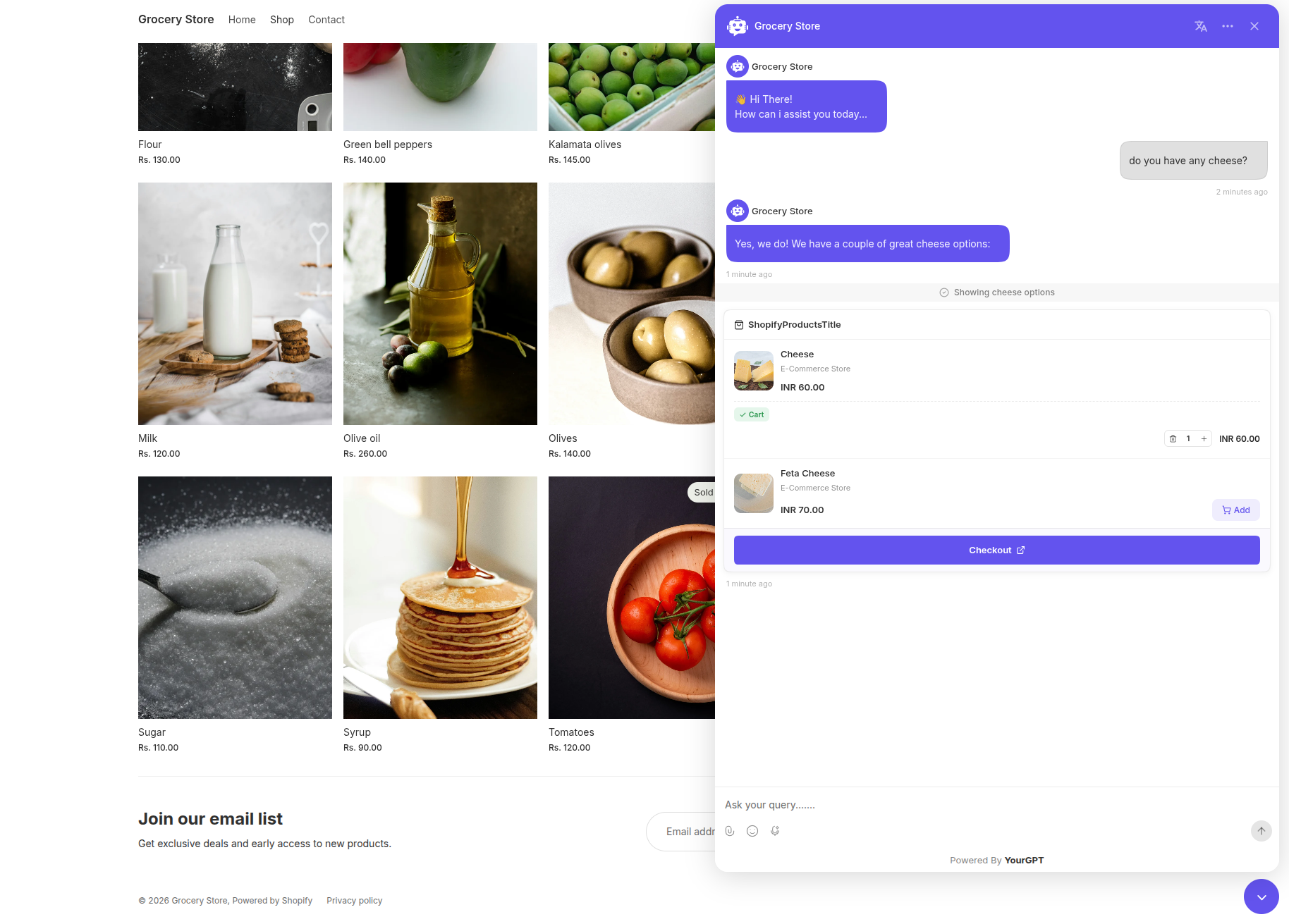
Tapping Add on a card adds it straight to the shopper's cart — instantly, no confirmation, since they're clicking a real button.
Tapping a product's image or title opens a full product view with photos, description, and options like size or color.
Once a variant is already in the cart, the card shows an "In cart" badge with quantity controls, and the button becomes "Add another option" for picking a different size/color.
3. Product Details
When the AI needs specifics about a product — like which sizes or colors are available, or the exact variant to add to cart — it looks this up behind the scenes. Shoppers don't see this as a separate step; it just feels like the AI already knows the answer.
4. Add to Cart
This is the shopper's real Shopify cart — the same one they'd see at checkout, not a separate one just for chat. There are two ways an item gets added:
Through conversation — if a shopper types something like "add that to my cart," the AI asks for confirmation first: a dialog titled "Add to Cart" asking "Add 1x [Product] to your cart?" with Cancel and Add to Cart buttons.
By tapping a button — clicking Add on a product card or in the cart view adds immediately, no confirmation needed.
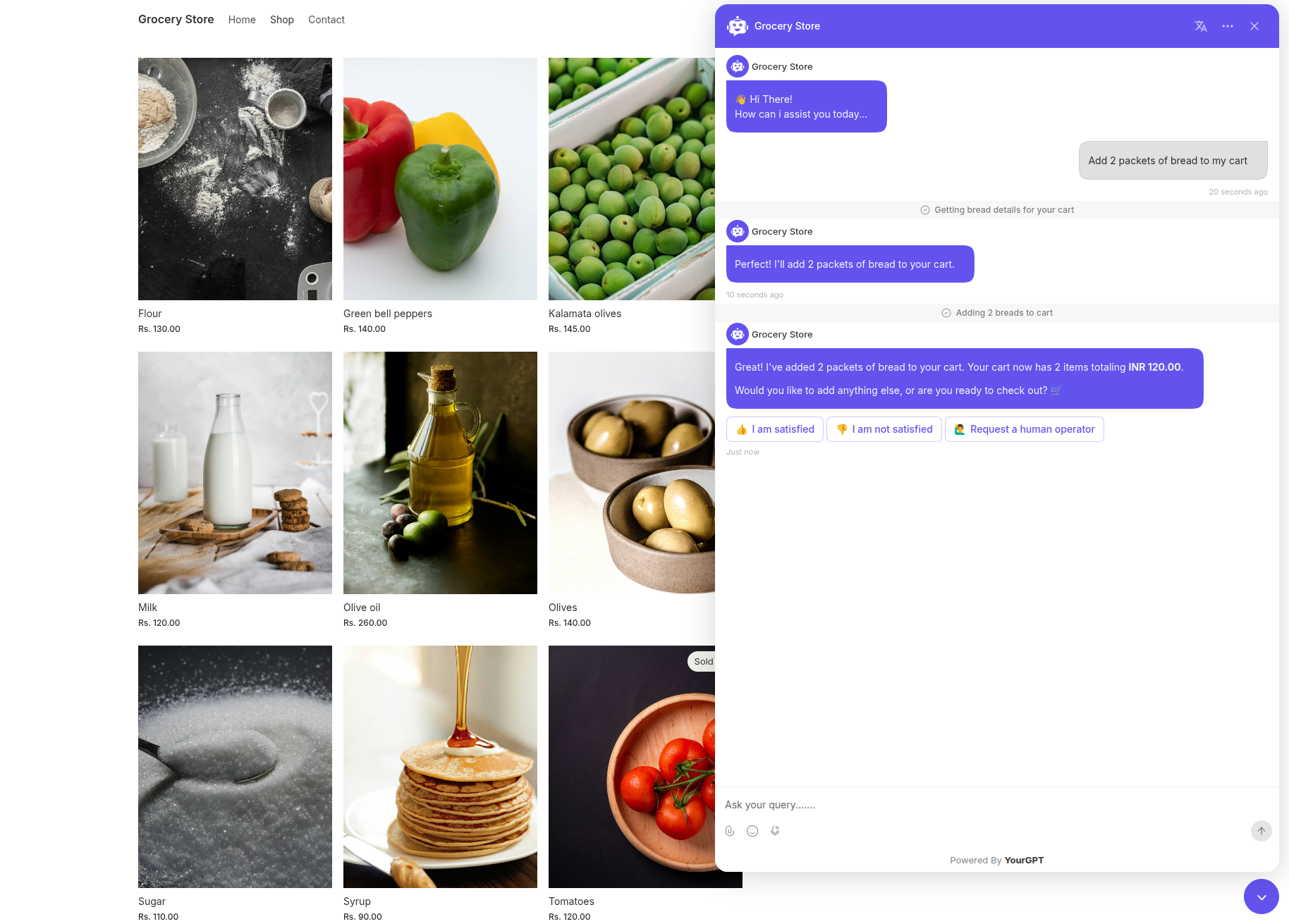
If an item is out of stock, it's clearly marked and can't be added.
5. View Cart
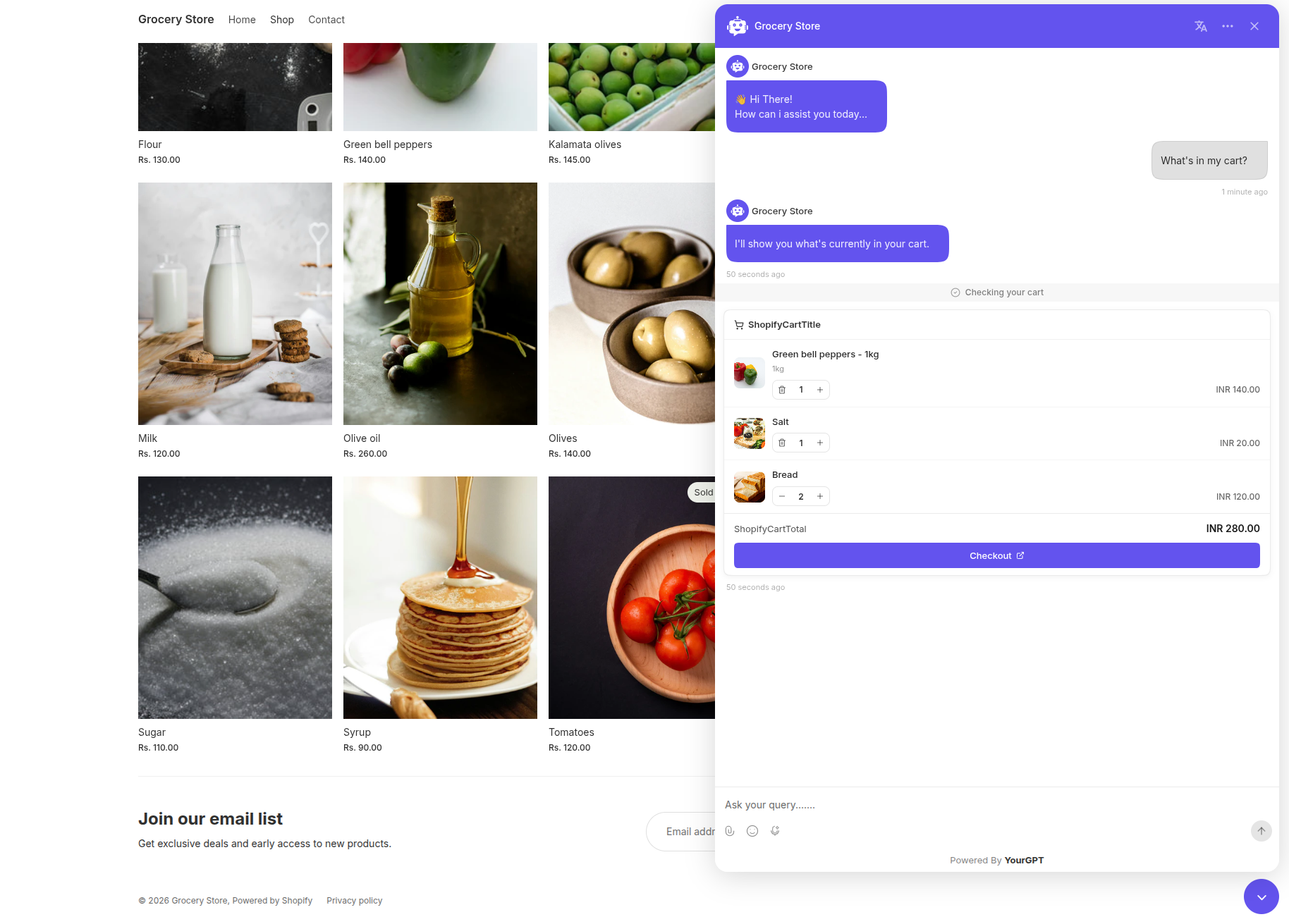
Shows an interactive cart card — item images, quantities (with +/− controls), prices, and a running total — plus a Checkout button that takes the shopper straight to your store's real checkout page.
Good to Know
- Requires Agent Mode. Like all AI Copilot actions, these only run when Agent Mode is enabled.
- All 5 actions turn on together automatically — there's currently no way to turn off just one of them individually once your site is detected as a Shopify store.
Related Articles
How to Generate a Shopify Auth Token for Chatbot Studio?
If you want to pull data from Shopify inside your chatbot's Studio flows — for example, to call the Shopify Admin API — you'll need an Auth Token.
How to Real-Time Sync Your Shopify Products and Customers with YourGPT
Automatically keep your AI agent's product and customer knowledge in sync with your Shopify store
How to Install the YourGPT Chatbot on Shopify?
Add the YourGPT AI chatbot to your Shopify store in a few steps.